Tuesday, December 01, 2009
A Bit of Toast for My Substitute Teacher
Wednesday, November 11, 2009
A Better Model for Tech Professional Development
- AV - using our Vado cameras and our digital voice recorders, using that media in projects
- Interactive Whiteboard - helping teachers create start using the new ActivInspire software to create their own IWB resources
- OneNote - using Microsoft Office OneNote 2007, a program that is used extensively by our admin team
- Web Presence - helping teachers create an easy to manage web presence to use with their class (e.g. a blog, a wiki)
- Wikis - what they are, how to use them with your students, how to start one
Looking for Blogs Written by Grade 5 or 6 Students
Sunday, November 01, 2009
My Favorite iPhone Apps
Todo. My previous post discussed how I was using this program in conjunction with the web-based Toodledo. Both are still working very well for me. I love having my task list always with me, and still being able to enter tasks via the keyboard when I am at a computer. Toodledoo is free. Todo is not free.
Twittelator Pro - This is a robust Twitter client. For me, it's best feature is its integration with Instapaper. My PLN on Twitter is constantly posting links to great blog posts. In the past I ended up following the links and then bookmarking them with www.diigo.com but I rarely remembered to go back and read them. Now I find I prefer to access Twitter from my iphone. I am constantly sending Twitter links to Instapaper. I feel like I am finally back in touch. And with my Twitter PLN vetting the sites for me, it is all quality reading. This is a paid app.
Tweetie 2 - Although most iphone Twitter clients can check more than one account, I find it more convenient to keep my personal account in a different client than my tech account. Tweetie 2 is a quick app with a clean and clear interface. I like that DM discussions appear in an iChat-style of window. Tweetie is also a strong desktop client. It might be Mac only. The iphone app is a paid app.
Shopper - As you would guess, this is a program for storing shopping lists. I've made lists for different places such as the shops across the street, the nearby mall, downtown, etc. When I am at those locations, I check the list and often find items I had forgotten I needed. This app does much more than I need it to do, such as allowing you to share lists with others. It has worked well for me because it is quick to use and it is easy to add new items. This is a paid app.
1Password - I had this on my Mac and now I also have it on my iphone. The desktop program plugs into your browsers adding a button. When you visit a site that requires you to login, you can click the button and it will log you in. I also use it to store my passport details, my work permit, and other important numbers. The program can also be used to generate strong passwords.The desktop and iphone versions can be synced across a wireless network. The iphone version doesn't plugin to Safari. Instead, you access sites using 1Password's own browser. It is handy so you don't have to try to type your logins on the iphone keyboard. Both are paid apps.
Evernote - For a while I kept a Zoho wiki as a catch all for information I needed to access at home and away. However, adding information to it was a bit tedious since I need to login, make a new page, etc. Evernote is a web based notebook for storing any and everything. You can use it at the web site. You can also download the desktop client (Mac, Windows, Linux and probably others) and access your notes from there. I have it on my Mac at home, my Windows XP machine at work, and on my phone. It syncs my notes across all my computers and with the website. Given time, the program even reads your images and can search text in them. The iphone app gives you another way to access your information. Unfortunately, you need to get online for it to do so which meant that on my Touch I often couldn't access my notes when I needed them. Now with an iPhone that is a non-issue. The app, like the website, is free for basic use.
Gym Buddy - This app stores my workouts. It has workouts and exercises already in it. It also allows you to add your own. That process is a bit tedious and has a few quirks, but the program has lots of really useful features such as workout timers, calendar and history. It is easy to edit the reps and the weights. I am finding it very useful.When I switched from my Touch I was dreading having to enter my own exercises again. Then I poked around the app and found it could backup to your computer using SyncDocs, an Open Source project from SourceForge that lets you sync without any configuring. It was incredibly simple to use and all my exercises, workouts and logs transfered cleanly. This is a paid app.
Of course I am using Fring and Skype. A friend told me he purchased a Skype In account with a number in his home area code. Friends and family back home can dial a local number and reach him. As a result, they call more often. Since my friends and family very rarely call me, I'm thinking of giving it a try. Both Fring and Skype are free iphone apps, but a Skype In online number has a fee.
MPR Radio - I may live in Singapore, but I find I miss listening to the news back home as I get ready for work. Then we found this app which makes it easy to stream our local public radio station. Now if only there were a way to block out the pledge drives. Of course, now that I am listening again, I need to support the station financially. But after I do that, I can switch over to using the Public Radio app until the pledge drive is over. It doesn't really matter if "All Things Considered" is streaming from Minnesota, Boston or Chicago. Both apps are free.

Stanza - This ebook reader is well designed. I love that built into it is access to many free sources for ebooks. It seems each time the app updates there are more sources. It also links you to paid sources. In either case, the books download into the program. It is highly customizable in terms of font size and style. You can lock the screen so the orientation doesn't keep switching if you are leaning or laying down. It has a built in dictionary. You can add bookmarks. It remembers where you left off in each book you are reading. This app is well worth paying for. The only feature I see that it lacks is the ability to mark up the text. I don't need that since I use it for pleasure reading, but the more scholarly readers may need that.
TripIt - I've been using the free TripIt website for the past year. I love that the site can suck in my hotel reservations and airplane tickets, combining them into one neat itinerary. It will even print maps to help me find the hotel. I love being able to send my family a tidy itinerary with all my contact details for the entire trip. Now there is a free iphone app. It makes it easy for me to check my itinerary any time a question arises. On my Touch I needed to let it sync with the website when I had wifi available. After doing that the information was available offline.
Packing - To get ready for those trips, I now use Packing. As you would expect, the program helps you pack for your trip. There are numerous apps with similar features. I choose this one because it allows you to easily add your own items. I was amazed to realize that quite a few of the apps in this genre didn't allow that. I also like that it has the option to only view the items left to pack or the items already packed. It also lists handy tasks that need accomplishing that you might forget, such as storing valuables, shutting off appliances and other handy reminders. This is a paid app.
myBatteryLife - is a paid utility. It tells me the % of battery left and then goes one step further. It lists how that % translates into talk time, internet on 3G, internet on Wi-Fi, video playback, and audio playback. Rechargeable batteries are usually good for X number of recharges before their ability to hold a charge decreases too much. Ideally, you should run your batteries down rather than keeping them always topped up. That keeps the batteries in good shape. I am finding that based on the phone's own icon, I would think I should charge it, but then myBatteryLife shows me that it is really still at 60%.
Mental Case - As a specialist teacher, I work with around 340 students. Unfortunately, I am not especially good at remembering names. Last year I started using Flashcard Exchange and it helped but creating the cards was tedious. This year, I purchased Mental Case for my Mac and for my Touch. Mental Case makes it really easy to create different types of flash cards. I loved that using Mental Case I could screen capture the students' photos out of Powerschool. I made flash cards for an entire grade level in an hour. Then I used Wi-Fi to sync the stack onto my iPhone. Now I can practice when I am in taxis or waiting for a meeting to start. The desktop version can import from the Flashcard Exchange website in csv format, meaning text will transfer but images will not. Mental Case is a paid app on the iphone.Maps - is a built-in app but I find it so useful that I wanted to mention it here. Last summer I used it often on my Touch. When I had Wi-Fi it could figure out where I was, and then route me to where I wanted to go. If I had to go somewhere new, I would do the searching when I was home and then the directions were saved on my Touch. Once when I was out, I was able to sip from an unsecured network to grab directions. When we were driving from Chicago down to Bloomington (and back) it gave better directions than the GPS we were using. It directed us right into the driveway of the rental car station. I have only used the driving directions but it also gives walking and bus directions. Now that I have an iphone, it can save the day even when we don't have Wi-Fi available.
Wednesday, August 05, 2009
Managing My Tasks

Thursday, July 02, 2009
Can This iPod Mini Be Saved? Yes!

Friday, May 29, 2009
Good Bye Web Pages, Hello Web 2.0!
However, I'm not going to write about any of those topics. Instead, I want to look at our move away from mandatory teacher websites.
Currently, in the primary and intermediate schools, teachers were required to have a web page. In years gone by, this took a ridiculous amount of their time considering its minimal impact on student learning. A few teachers really excelled and it because a hub for the classroom. For most, it was a true burden; something that weighed them down.
A few year ago, the tech coordinator worked with the web manager to create a basic template. Other than needing the class photo inserted, everything that was required was on that page. Teachers never needed to touch it unless they had a desire to do so.
At the same time, we switched from Microsoft FrontPage for hosting teacher web pages, to Contribute. A further change was using JAlbum to generate web photo galleries. Teachers drop a folder of photos into the correct place on the server and Voila! In an hour or two they appeared in the online photo galleries.
Teachers loved the ease of this and the size of our photo galleries soared. At first the quality level was low and the volume was high. That has evened out a bit with time. Now those photo galleries also host student-created movies and podcasts. It has worked well and the photo galleries receive far more visitors than the teacher web pages.
Now we are going to make the next step and do away with teacher web pages. Other than grandfathering in one teacher who has an extensive website tied closely to his curriculum, the rest of the teacher websites will go away at the end of this year. There will no longer be a requirement that teachers have any web presence besides their photo gallery.
For those teachers who do want more of a web presence, I will work with them to find a platform that best meets their needs. For some it will be a blog. One of our art teachers has already made that leap and is making good use of a Wordpress blog. For others it will be a wiki such as those being used so effectively down in our primary school. Still others may create a Ning. In any case, we are moving away from static web sites to more dynamic, interactive tools.
We will have one blog platform and one wiki platform that we support. Teachers are welcome to use any blogging or wiki platform, but we will only support those two to for practical reasons. In the primary they have gone with Wetpaint as their wiki platform. The COPA laws have not been a hindrance for them because students are either working as a whole group with the teacher on his/her account, or they are working at home with their parent using the parent's account.
For our division, the decision is trickier since our students are able to work autonomously and are more likely to edit maliciously. We would prefer to use Wetpaint since our staff is familiar with it from our conference sign up wiki. We also prefer its looks and its features. However, the inability to create accounts for students under 13 years of age is a big stumbling block. It may drive us to Wikispaces with their very student-friendly accounts and good customer service.
Wisely, my principal is not mandating that teachers have any web presence. Teachers are very busy and for some, none of those tools fit their teaching style and needs. I suspect others will end up using many different web tools with a blog for communication, a wiki for student projects, and other tools, such as Voicethreads pulled in where appropriate.
I'm excited to see these changes roll out. I hope teachers are relieved to be released from web sites. I think it will lead to more thoughtful and powerful uses of online platforms. These platforms invite student and parent participation. I'm glad to see us officially joining the Read-Write web.
Where is your school in this process? Have you chosen an outside host for blogs or wikis? Which did you choose? Why?
Monday, April 06, 2009
Conference Registration Made Easy Using a Wiki
In the fall our classroom teachers have three-way conferences. They meet with each student and their parents to discuss the child's strengths and to set goals. On that same day, if parents or children wish, they may also schedule a conference with any of the specialist teachers (e.g. art, Chinese, computers, library, music, P.E.)
Sibling and some support student conference are pre-scheduled. After that point, most teachers assigned conference times to the rest of their families and sent home the letter informing families of their scheduled time.
The system worked reasonably for classroom teachers, but not as well for specialists since families contacted the classroom teacher, who then contacted the specialist, who then contacted the family. It often took many phone calls.
Enter the Wiki!
In an effort to improve that process, we decided to try using a wiki so that parents could schedule their own specialist conferences. We decided to use a private Wetpaint wiki. We choose Wetpaint because it isvisually attractive, easy to use, the table feature works well, and private wikis can be accessed with a generic password account. We did not register it as an education wiki so ours had ads along the side but they were no problem since this wiki was not being used by children.
When users visit the wiki, they are greeted with a login screen. A few key users, like myself and the principal had their own account for administering the wiki. Beyond that, I created a generic teacher account and a generic parent account. At first, the teacher account and the parent accounts had the same level of access, but we decided to raise the teacher's level so that they
could lock their page if needed.

The design of the wiki is simple. The front page contains basic directions and links to each teacher.

Clicking on the teacher's link takes you to their schedule. Clicking on the EasyEdit button allows them to add their name to a timeslot on the schedule. Clicking Save records their changes and returns them to the web page.
(Note: When I shrunk my browser window to fit more into this image, the table formatting on the schedule changed appearance.)Originally, only the specialists were taking part, but as the process moved forward, 18 classroom teachers and a few of the support teachers decided to join the pilot.
Before the wiki was opened to parents, teachers entered the sibling conferences onto their schedule. Our school pre-schedules sibling conferences to ensure those families have back-to-back conferences for their children. Teachers also entered in the pre-scheduled support students conferences to ensure that the support teacher was able to take part. Support families were asked to NOT move their child's conference without contacting the classroom teacher to ensure that the support teacher would be able to attend.
For support teachers with pull-out classes, families were not able to sign up directly for the conference due to confidentiality issues. Instead, the schedules showed which slots were open and which were already reserved, making it easier for families to find a time that worked for them when they contacted the support teacher. One support teacher reported that this was the first time ever that he wasn't double-booked between his push-in and pull-out student conferences.
Concerns and Solutions
We had many concerns at the start of the pilot. The biggest was that allowing families to add their names to the schedule actually meant they could change ANYTHING on the page. The wiki did not allow us to someone lock parts of the page while leaving the other parts available for editing. Someone could intentionally or unintentionally delete large parts of the page. Since we were using generic logins for convenience sake, we would not even know who did it.
Fortunately, Wetpaint (like most wikis) has a robust history section. You can roll the page back to any previous revision. If someone messed up a page, we could roll back to a point where it still had most of its data. As a further safeguard, we asked the instructional assistants to print out their teachers' pages each day during the sign up period so we could refer to them if needed.
Another concern was simultaneous edits of the same page. Fortunately, our testing showed that if two people were editing the same page at the same time, when they tried to save, it warned them. It gave them the option to overwrite or cancel. We told them to cancel and try again. Even if they chose to overwrite, Wetpaint seemed to be cancelling.
Still other concerns were that someone might accidentally delete someone else's name, leaving that space erroneously open for a third person to sign into. Our directions at the top of the page told families what to do if they accidentally delete someone's name. It also let them know we were printing the schedule each day so we could check our records to see who had that slot previously. Fortunately, we only received one report that a name had been deleted, and further research showed that was erroneous; the parent had originally signed up on the wrong teacher's schedule.
A final concern was that some families would be intimidated by the technology. The letter that went home told families that they could still contact the teacher via email or phone, but warned that the slot they wanted may be gone by the time the teacher got to their message.
Training
In the month before the wiki opened to parents, I held training session for the teachers and instructional assistants so they could learn how it all worked, and so that I could help them if they needed to change the schedule, since making changes to the table was the trickiest part of this entire process. I created a handout that they could take away with them. It was also stored in our tech help One Note so they could refer to that as needed.
Both trainings went quickly and well. Most participants were surprised at how easy it was to use.
Timeline
- January: Set up wiki. Many meeting with my principal to revise the design and the directions.
- February: Train specialists and support teachers, train instructional assistants, solicit classroom teachers to pilot the process
- Early March: Train the classroom teachers. Enter the pre-scheduled sibling and support conferences into the classroom schedules. Letter sent home to families. Open the wiki to families.
- March 16 -17: Strength and Goals Conferences
Results
We were surprised that the sign up process went so smoothly. We expected confusion, mistakes, and technical problems. Fortunately, we had almost none. One teacher reported that everything went so smoothly that she didn't need to make a single phone call to parents. The biggest problem was families with multiple children mixing up their own conference times, but that had nothing to do with the wiki (and probably everything to do with busy families.)
We are in the process of surveying participants. With most of the surveys in, the response from teachers, especially specialists was overwhelming supportive. Using the wiki made the schedule process easier and in some cases, much quicker. They reported that some families who knew each other, even arranged time swaps since they could "see" the entire schedule. Other teachers reported that during the sign up week, they could see some families changing their own time repeatedly as scheduling conflicts arose. The wiki was able to accommodate their needs.
Among the families, the response was also strongly positive. One parent asked, "You aren't going to take this away from us, are you? All teachers should have to use it! It was great!" Of the 10% who did not like it, most wrote a comment regarding that it worked well, but they aren't comfortable with technology.
All in all, using a wiki to schedule strengths and goals conferences was a success. We are discussing whether or not to require it next year. The primary school is not looking at using it because their teachers prefer being able to schedule the conferences without giving families a choice so that they can maximize their own effectiveness as teachers, scheduling the challenging conferences for when they can best direct them.
Are you using technology to allow families to schedule conference times? I'd like to hear about it.
Sunday, March 08, 2009
Not Only is the Jury Still Out... Court Isn't Even in Session
I thought all would be different my second year because...
- I finally had a board of my own.
- I wasn't quite so new.
- I'd been doing my reading and gathering resources.
Well, it turned out, my lab was closed most of the year and the room I taught in could accommodate the IWB or the children, but not both. And while my reading was helpful, it only took me so far. Our wonderful trainer that we brought in, Jenny Black from Tanglin Trust School, could show me excellent examples of the boards being used for higher order thinking, but I was unable to transfer those examples to my tech class.
So now we are in year three. My admin is comfortable putting boards in the rooms of teachers who want them, and has been helping me find time in next year's calendar for more training. I have a few teachers doing great things with the board. It is integral to how they teach. They aren't using it as an expensive mouse. The kids are at the board doing work. The work is captured and saved to the CMS where they can refer to it as they work on their homework. Many other teachers are using flipcharts created by a teammate. It is better than not having the board, but it is not disruptive, not leading to the revolution.
Given this history, you can see why, when someone asked me recently to explain why IWBs are so essential, I was unable to do so. It is not that I'm convinced they aren't essential, it's that we are still mostly using them in old ways to do old things. We get glimmers of new ways, but just glimmers as we scurry here and there under a pile of worthwhile but large initiatives. We spend time feeling bad we haven't put more time into IWBs.
But of course, that is just more doing old things the old way. I suspect that as long as we look at the in-service model for transformation, we'll never get there. Too often, in-services are dead ends. We need instead to look more at the Understanding by Design model, and look at where we want kids to be and work backward from there. Training staff is important, but I've found kids learn tech skills best when I don't teach them as separate skills, but embed them into projects. The point then isn't the skill, it is the project, and we get a two-for-one type of deal.
Can we do the same with IWBs and other potentially disruptive technologies? Can we quit holding in-services to get teachers up to speed, and instead, start with where we want kids to be and then pull in the tools that best help us get them there?
I don't know. I think it might work better for some. Others probably won't feel comfortable to make the shift. They'll keep wanting direct instruction, waiting until they are good enough at it to use it. Of course, they never get there.
What do you think? Could this model work better? How would you start it? I'm interested in what you have to say.
Sunday, March 01, 2009
Need IWB Resources for Chinese Teachers
I'm really struggling to help our elementary Chinese teachers use their IWBs to powerfully impact student learning. They've seen people using them to present Powerpoint presentations, and they are correctly unimpressed.
I've looked through the blog posts from IWB Challenge participants and I learned a bunch from them, but my teachers are needing to see and use ready made charts.
I've check Diigo groups. I've searched Promethean Planet and found a few flipcharts that helped them. But I need more. I need to innundate them with ideas, or put them in touch with an active group. Making this more challenging, is that they don't teach writing. They are a speaking and culture class.
If you have any suggestions of where I can find the resources I'm seeking, please leave me a note in the comments.
Thank you in advance.
Thursday, February 26, 2009
OneNote
- I'm a tech integration teacher. This year I set up my lesson plan book as a OneNote notebook. I met with each teacher to plan the semester. I gave each teacher read only access to the notebook because I didn't want someone to add information for the next class and me not notice it in time. I can work on it from home or school. Access it from any room in the building, and I no longer need to give paper copies or even electronic copies to my principal; she just subscribed to the notebook.
- I created a Tech Help Notebook full of step-by-step directions. For teachers who are comfortable trying new things as long as they have directions, this has worked well and they haven't needed to wait for me to come help them.
- Budgeting. I created a tab for each department. As they contacted me during the year with requests, I'd click the "Send to OneNote" button in Outlook and then move it to the correct location. As I did research on requests, I'd paste in information from the web and other sources.
- The Tech Coordinators meet weekly and our notebook has headings such as agenda and minutes, computer builds, policies and forms, and tabs for current projects.
Friday, February 06, 2009
Vast Numbers and Useful Examples
In the article Numb and Number: Is trillion the new billion? Christine Romans uses the following examples from Temple University math professor John Allen Paulos to give meaning to million, billion and trillion.
"A million seconds is about 11½ days. A billion seconds is about 32 years, and a trillion seconds is 32,000 years," Paulos said. "People tend to lump them together, perhaps because they rhyme, but if you think of it in terms of a jail sentence, do you want to go to jail for 11½ days or 32 years or maybe 32,000 years? So, they're vastly different, and people generally don't really have a real visceral grasp of the differences among them."I find this type of example much more comprehensible than the others I've read, such as a stack of bills reaching 1/3 of the way to the moon.
I don't know that as a computer teacher in an elementary school I'm going to get to use this example in the next few days or months, but I know it will help give meaning to the news as I read it.
How do you make large numbers accessible to your students?
Sunday, February 01, 2009
The Weight of Unread Posts
I wonder why I feel so much lighter now that there are no longer 1000+ posts waiting for me to read them. After all, it is MY blog roll. No one is forcing me to read them. And if the weight of the unread ones is pulling me down, why don't I delete them?
I probably do need to prune my blog roll, and occasionally I do lop a few off that no longer speak to me. However, I find I am still adding. Most of what I add are not edublogs. My blog roll now better reflects some of my hobbies and interests outside of education and technology. I'm also reading more news sites via RSS now that I let my newspaper subscription lapse.
The same is true of my podcast subscriptions. I'm spending less time listening to educational ones, and more time on my hobbies, news, science, and audio books.
Part of me really misses being as in-the-know as I used to be when I read lots of edublogs. I loved being part of the discussions. I didn't always have anything to add to it, but it let me see ideas evolve over time in the community. It let me be an early adopter of new technologies and that has served me well, making me comfortable with them before I need to be using them on the job, and letting me "see" where things were going.
It also saved me a lots of headache. For example, reading someone's post about what did and didn't go well with their class Voicethread project allowed me to avoid the pitfalls and build on the strengths. It gave me answers to my questions and to ones I hadn't yet anticipated.
Another part I miss is the substance. Facebook has been great for catching up with distant friends. Twitter is amazingly good at just-in-time answers. But neither has the depth of extended thinking. Neither makes me think in the ways a good blog post does. Neither informs my practice nor challenges me out of complacency.
I do notice that many prolific bloggers are blogging less. I don't think that means the blog will die any time soon. I hope it means that posts will be more thoughtful. I'd much rather read one good post a month from someone than having my feed reader filled up with posts that are nothing more than lists of the sites they added to Delicious.
I'm seeing I do value edublogs. I appreciate what they add to my life and my work. I guess what I really need to learn is to not let the unread ones get me down.
How has your blog roll or blog reading habits changed in the past year?
Monday, January 26, 2009
Return of Service Notice
We, the United States of America, your top-quality supplier of the ideals of liberty and democracy, would like to apologize for our 2001-2008 interruption in service.
The technical fault that led to this eight-year service outage has been located and the software responsible was replaced on November 4, 2008.
Early tests of the newly-installed program indicate we are now operating correctly and are fully-functional as of January 20, 2009.
We apologize for any inconvenience caused by the outage. We look forward to providing full service and hope to improve in years to come. We thank you for your patience and understanding.
Sincerely,
The United States Of America
(A friend sent this to me. I haven't found its origin yet. If you know it, please let me know.)
Sunday, January 11, 2009
Movtivators and Demotivators
The website is Motivator from Big Huge Labs. It allows you to use a photo from your computer, Flickr, Photobucket or a URL, and turn it into a motivational poster.

I can see using FlickrCC images to allow you to create posters of character traits, themes, decision-making, vocabulary. The list goes on and on. You do need to register to upload images or link to a Flickr account. I think you can enter a photo's URL without registering.
Registration is free but requires an email address. I did not test out linked Gmail addresses to see if they worked.
If you aren't very fond of this type of motivational poster, check out the demotivational posters at Despair.com. If you've ever been part of ISO 2000 or a school accreditation review, you may especially appreciate this poster.
Friday, December 26, 2008
99 Things Meme
THE 99 THINGS MEME
Things you’ve already done: bold
Things you want to do: italicize
Things you haven’t done and don’t want to - leave in plain font
1. Started your own blog.
2. Slept under the stars. (Can't unbold this for some reason. I haven't done it but I've slept in a family stilt hut in northern Thailand, with the pigs and chickens walking around below us.)
3. Played in a band.
4. Visited Hawaii.
5. Watched a meteor shower.
6. Given more than you can afford to charity.
7. Been to Disneyland/world.
8. Climbed a mountain.
9. Held a praying mantis. (andwatched my cat play with them in the condo in KL)
10. Sang a solo.
11. Bungee jumped. (But I've helped kids on a rope course for hours.)
12. Visited Paris. (But I've been to Kathmandu.)
13. Watched a lightening storm at sea. (How about from an airplane? I've done that often.)
14. Taught yourself an art from scratch. (How about knitting and swimming? I retaught myself both.)
15. Adopted a child. (Adopted an abandoned animal.)
16. Had food poisoning.
17. Walked to the top of the Statue of Liberty. (Walked to the top of Batu Caves and up to Namché Bazaar in the Himalayas.)
18. Grown your own vegetables. (Supported organic farmers, grown plants with kids cared for U of MN corn fields.)
19. Seen the Mona Lisa in France. (Seen prehistoric cave drawings in Thailand.)
20. Slept on an overnight train. - from Cairo to Luxor in Egypt.
21. Had a pillow fight.
22. Hitch hiked.
23. Taken a sick day when you’re not ill.
24. Built a snow fort.
25. Held a lamb. (I've held a piglet, and they are not easy to hold! And I've bottle fed a calf.)
26. Gone skinny dipping.
27. Run a marathon. Nope, but I've biked across the state three times.
28. Ridden a gondola in Venice. Nope, but I've ridden an elephant in Thailand.
29. Seen a total eclipse.
30. Watched a sunrise or sunset.
31. Hit a home run.
32. Been on a cruise.
33. Seen Niagara Falls in person.
34. Visited the birthplace of your ancestors.
35. Seen an Amish community.
36. Taught yourself a new language.
37.Had enough money to be truly satisfied.
38. Seen the Leaning Tower of Pisa in person. I've seen the pyramids in Egypt.
39. Gone rock climbing.
40. Seen Michelangelo’s David in person.
41. Sung Karaoke. (unfortunately)
42. Seen Old Faithful geyser erupt.
43. Bought a stranger a meal in a restaurant. Bought a homeless person a meal.
44. Visited Africa.
45. Walked on a beach by moonlight.
46. Been transported in an ambulance. (I don't think so, but my Red Cross certification is up to date.)
47. Had your portrait painted. (No, but my sister has taken great portrait photos of me.)
48. Gone deep sea fishing. (Nope, but I've snorkeled on the Great Barrier Reef.)
49. Seen the Sistine chapel in person.
50. Been to the top of the Eiffel Tower in Paris.
51. Gone scuba diving or snorkeling.
52. Kissed in the rain.
53. Played in the mud.
54. Gone to a drive-in theater.
55. Been in a movie. (I've directed a few plays.)
56. Visited the Great Wall of China.
57. Started a business.
58. Taken a martial arts class
59. Visited Russia.
60. Served at a soup kitchen. (I've delivered Meals on Wheels.)
61. Sold Girl Scout cookies.
62. Gone whale watching.
63. Gotten flowers for no reason.
64. Donated blood.
65. Gone sky diving.
66. Visited a Nazi Concentration Camp. (Visited the Holocaust Museum in Washington, D.C.)
67. Bounced a check.
68. Flown in a helicopter. - Through the Himalayas no less!
69. Saved a favorite childhood toy.
70. Visited the Lincoln Memorial.
71. Eaten Caviar.
72. Pieced a quilt. (Nope, but I can knit a sock!)
73. Stood in Times Square. (I've stood in Tienanmen Square.)
74. Toured the Everglades. (I've ridden on the Mekong.)
75. Been fired from a job.
76. Seen the Changing of the Guard in London.
77. Broken a bone.
78. Been on a speeding motorcycle.
79. Seen the Grand Canyon in person.
80. Published a book.
81. Visited the Vatican.
82. Bought a brand new car.
83. Walked in Jerusalem. (I've walked and talked with landmine victims in Siem Reap, Cambodia. I've chatted with young Buddhist monks in Luang Prabang, Laos.)
84. Had your picture in the newspaper.
85. Read the entire Bible. (I've read most of it. The book of numbers nearly killed me.)
86. Visited the White House.
87. Killed and prepared an animal for eating. (I did have to cut the head and feet off the last chicken I purchased in the grocery store.)
88. Had chickenpox.
89. Saved someone’s life.
90. Sat on a jury.
91. Met someone famous.
92. Joined a book club.
93. Lost a loved one.
94. Had a baby.
95. Seen the Alamo in person.
96. Swum in the Great Salt Lake.
97. Been involved in a law suit.
98. Owned a cell phone.
99. Been stung by a bee.
How about you? Consider yourself tagged.
Tuesday, December 09, 2008
Movie Trailers for Books
The unit began in the classroom. The teacher showed the class a number of movie trailers and challenged the students to figure out what strategies and movie devices were used to capture their attention, hold their interest, and make the viewer want to see the film.
Next she had her students select one of the books they have read so far this year and she sent them to me. I introduced Flickr and the idea of Creative Commons license as opposed to regular copyright. This discussion also introduced the concept of tags and reviewed the correct actions to take if their search should pull up inappropriate images.
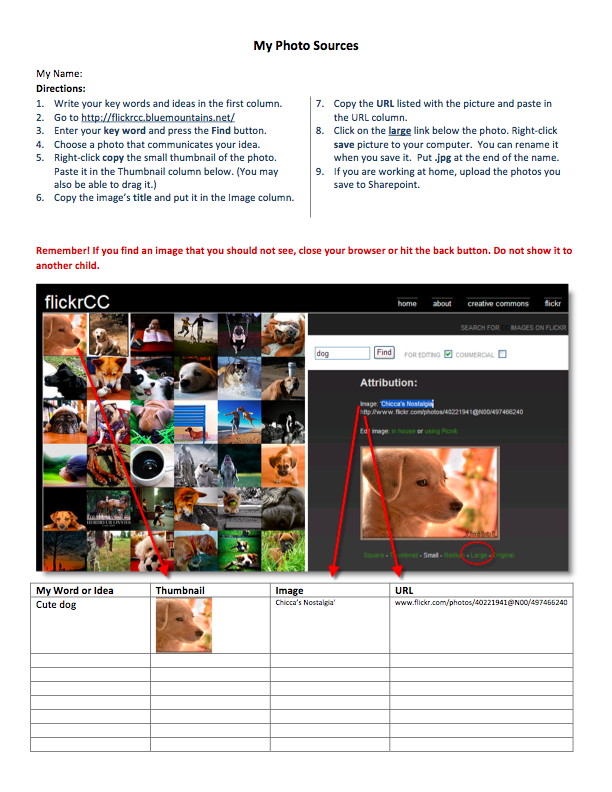
From there, they went into Sharepoint to open a copy of our photo sources form. The directions on this form are more than a child is likely to read, but we knew some children would be working at home and wanted to give enough information that parents could successfully support their children on this step of the project.
Most of the students seemed to really enjoy using FlickrCC to find their photos. Finding photos to fit their story or the mood they were trying to create was a good challenge.
As you could predict, many students forgot to complete step 8. Fortunately, most of them did remember to paste the photo name and URL onto the photo sources form, so it was easy to locate the photo again and save it to their computer.
When they had all the photos they needed, students went into Windows Movie Maker to create their movie trailer. This program is easy to learn and offered enough control for most of the projects. We were fortunate that many of the students in this class had become adept at using it last year when their fourth grade teacher had her class create movies of a poem they had written. These students were our experts as we began this fifth grade project.
I don't necessarily agree with the claims that most of my students are digital natives, but I do think they are media natives. They have a great deal more experience than I have with watching videos. They clearly drew on that experience to craft their movies. For example, one student selected a theme song for each of the main characters and she'd play the appropriate theme each time that character was in the trailer. Another student showed a succession of photos, each photo visible for less time than the previous one, to build tension.
As is common with upper elementary students, most focused on some aspects of story telling and cinematography while ignoring others, but I think these first attempts at creating book trailers are very well done.
We have them posted on our school website. We have dropped them into our web photo gallery which was easy and made them accessible to our families, but it doesn't allow you to see the title of the book. We had thought of putting the videos into YouTube but the class didn't feel ready for that step. You are welcome to view the videos here (until they are taken down when the web server begins to fill).
There is no way to leave comments in the web gallery, but if you leave comments here on this blog post, I'll forward the positive/constructive comments to the children.
Saturday, November 15, 2008
Search-Cube
Now generally I'm not a proponent of having elementary kids use Google. Their media literacy skills are such that they can't scan a list of hits to quickly determine which hits are relevant and which are from reliable sources. I much prefer vetting sites in advance.
However, there are plenty of times when I do turn to Google with a child, usually when they come to me with a question and I don't know the answer. I wonder if being able to "see" the hits rather than read their text would help them more quickly find hits that meet their needs.
Or, it could be more problematic and distracting. I remember years ago a child was researching prairie fires. I was sitting with him and in addition to the relevant hits, the Google search brought up hits for a music group and a mixed drink, both of whom were called Prairie Fire. I can imagine this child being easily distracted by rock group photos. I can also imagine them more often "seeing" inappropriate things.
What do you think? Would you use it with kids? Do you think it would be more useful to them than a straight Google search?
Friday, November 14, 2008
Tech Ideas for Elementary Music
The invitation was pure gold; the elementary music department asked for an hour of my time on the inservice day, to teach them about new technologies that they could use in their instruction. What tech coordinator would turn down an opportunity to work with the willing?
I really struggled with the agenda. It wasn't a how-to session, but I knew that getting them actively involved would be more engaging and more powerful. However I only had an hour before they had to rush off campus for an inservice in Little India.
I was tempted to show them Animoto, but it is so slow that I had to give up that idea. I also decided to steer away from good music websites since they are skilled at finding those on their own.
I started the inservice telling the music teachers, that I knew lots of tech tools that could enhance their curriculum, but I didn't know how to teach music. It was up to them to find ways to make use of these tools as they saw fit. To my delight, they did that all hour. In the end, here was my agenda. In green I'll give a quick explanation of what was discussed.
When to use tech
Tech As Problem Solver: work more effectively, efficiently
- Tech As Enhancer, do things not possible without it, take lessons to next level, collaborate
Blackboard
Our school has Blackboard. You may have used it or something like it if you have taken an online course that required you to take part in asynchronous discussions. All our classes are automatically set up in Blackboard, thanks to a script that runs to pull data from Powerschool.
- Discussion Boards: Allow for discussions to continue outside of class. Allow you to hear from every student. Often children who don't talk much in class are very willing participants in written
- Voiceboards: Like discussion board forums but with sound! Teacher can upload music. Students can record themselves talking, singing, playing an instrument. Student posts can be listened to by entire class or made private so only the teacher can hear them. Already in regular use by high school language classes, the elementary music teachers saw many ways they could make use the voice boards, especially with their grade five instrumental students.
VoiceThread
- I showed them an thread of a Norman Rockwell print. Each student had left a comment to interpret the painting. http://voicethread.com/?#q+norman+rockwell.b5990
- I also showed them a very simple one of pictures of musicians playing stringed instruments. The children had each made a comment such as "Violins are made of wood." http://voicethread.com/?#q+music.b66062
Wikis
- Wikis in Plain English: http://www.youtube.com/watch?v=-dnL00TdmLY
- Parent wiki: A parent has set up a wiki to make it easy for parents to sign up to bring the snacks to the boys varsity basketball games. She used Wikispaces and did not protect it with a password, so it is possible, but not likely that someone could maliciously edit it. Other than one parent accidentally adding extra cells.
- Class wiki: http://mrcarroll.wetpaint.compage/Any+Words+of+Wisdom+for+the+New+Class%3F
- Conference wiki: This password protected wiki is something we might use to facilitate parents signing up for optional spring conferences with specialist teachers. The music teachers cheered and immediately and saw ways to extend its usefulness. http://sasconferences.wetpaint.com/
You Tube
We didn't have time to discuss YouTube. I wanted to show them how it can be used for finding clips of ethnic music to support the diversity aspects of their curriculum. Can also find examples of instruments and their sounds, and other useful clips. If they view in Internet Explorer, the RealPlayer plugin will download the clip to their RealPlayer library so that their lesson is not sabotaged if our internet is slow or not working.
Voice Recorders
Like a thumb drive, these stick MP3 recorders are highly portable. They could be used to record a guest lecturer, to record ensembles, to let the class hear how their performance pieces are sounding.
Flip Video Camera
- One of my music teachers has been using the Flip video camera to record voice students. For example, possibly she signs along with the student and then they burn that clip to a CD so the student can practice with it at home.
- Another use was to have each stings player go to another room to record their performance piece. That allowed her to observe it outside of class, share the video with parents at conference time and offer suggestions for how to help the child improve their playing.
What did I miss? If they invite me back, what other hardware and software tools should I show them? They already use Music Ace, Groovy Music, Finale Notepad. They already have iPods on which they create playlists for their lessons. They already have data projectors and wireless mouse and keyboard sets. What other tools would positively impact student learning?